Working with tasks
A task is a piece of work on a board. Every task has a key made of the board's prefix and a number, such as PRD-3, which you can use to find it and refer to it.
What you can do with a task depends on your role on its board. Editors and Board admins can create, edit and move tasks. Viewers can open tasks and read everything, and follow a task, but not change it or comment. See Members and sharing.
Create a task
There are several ways to create a task:
- Choose New in the board header, or press C on a board.
- Choose Add task at the bottom of a list, type a title and press Enter.
- In the Calendar or Timeline view, click or drag on a day — see Boards and views.
The New task dialog lets you set the title, list, description, labels, dates, assignees and an estimate up front.
- Enter a title (required).
- Fill in anything else you already know.
- Choose Create task, or press ⌘/Ctrl + Enter.
Tick Create another to keep the dialog open for the next task.
You automatically become a member of a task you create, so you hear about changes to it. You're only assigned if you pick yourself.
Find a task
Press ⌘K (Ctrl+K on Windows and Linux) or use Search in the sidebar to search tasks across all boards in the workspace, by key or title. On a board, the Filter narrows down the tasks you see.
The task page
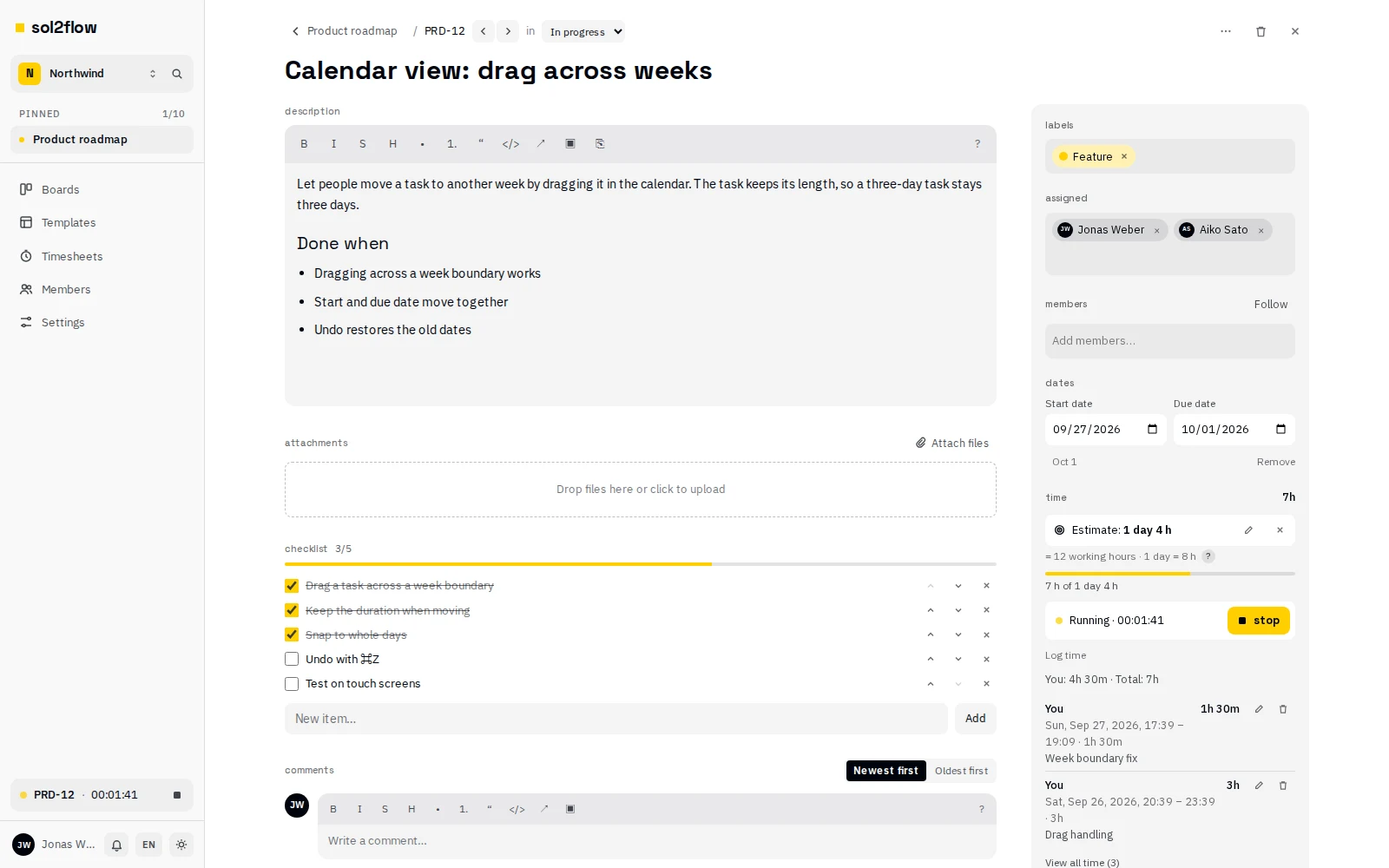
Opening a task shows its full page. On the main side:
- Title — click to edit.
- Description — rich text with images and files.
- Checklist.
- Linked tasks — tasks this one blocks, is blocked by, duplicates or relates to.
- Attachments.
- Comments.
- Task activity — the history of the task.
The side panel holds Labels, Assigned, Members, Dates and Time.
Use Previous task and Next task to walk through the tasks of the board without going back to it.
Descriptions and rich text
The description, comments and replies all use the same editor. The toolbar offers Bold, Italic, Strikethrough, Heading, Bulleted list, Numbered list, Quote, Code block, Link, Insert image and Attach file.
To add an image, paste it, drop it into the editor, or use Insert image. It uploads and appears inline, with a progress bar while it's uploading.
Markdown shortcuts
You can type Markdown and it turns into formatting as you type. Choose ? at the end of the toolbar (Markdown supported) for a cheat sheet.
| Type | You get |
|---|---|
# or ## then a space | Large heading |
### then a space | Heading |
**bold** | bold |
*italic* or _italic_ | italic |
~~strike~~ | Strikethrough |
`code` | Inline code |
``` (optionally with a language, like ```js) | Code block (press Enter three times to leave it) |
> | Quote |
- or * | Bulleted list |
1. | Numbered list |
- [ ] or - [x] | Task list with checkboxes |
--- | Divider |
[text](https://example.com) | Link |
A web address followed by a space becomes a link automatically.
Pasting Markdown: when you paste plain text that looks like Markdown — headings, lists, code fences, links — it's converted into formatting. Formatted text copied from a web page or another editor keeps its formatting. Text pasted inside a code block stays exactly as it is.
A few things to know:
- Raw HTML is never interpreted; it stays visible as plain text.
- Only
http,httpsandmailtolinks (and links within sol2flow) are kept. Other links keep only their text. - Markdown tables become one line per row, because the editor has no tables.
- Ticking a checkbox in a task list counts as editing the text.
Mentions
Type @ in a comment, a reply or the description to mention someone. A list of people appears as you type a name or username. Use ↑ / ↓ and Enter (or Tab) to pick someone, or tap on a phone. Esc closes the list.
- Only people who can already open the board are suggested. You can't mention someone outside the board — use the Share dialog to give them access first.
- A mention shows as a highlighted chip, like @Aiko Sato.
- The mentioned person gets a notification with the text around the mention. Editing the text later only notifies people who weren't mentioned before.
- Mentioning someone doesn't make them a member of the task.
Labels
Add labels in the side panel's Labels field: start typing to find one. If no label matches, editors can choose Create label to create a new board label. See Labels.
Assigned and Members
A task has two lists of people, and the difference matters:
- Assigned — who does the work. Assignees appear as avatars on the card, are what the board's Assigned to filter matches, and are shown first when logging time.
- Members — everyone involved or following the task. Assignees are always members too.
Both assignees and members are notified about changes to the task (see Notifications).
Editors and board admins can change both lists: use Assign people… and Add members…. If someone you add can't open the board yet, they get access automatically — workspace members as Editor, guests as Viewer. People outside the workspace can't be added.
Anyone who can open the task, viewers included, can Follow it to become a member, or Unfollow to stop. While you're assigned you can't unfollow — unassign yourself first.
Dates
Under Dates, set a Start date and a Due date. Either is optional, but the start can't be after the due date. Tasks show Due today or Overdue when the due date arrives or passes.
Due dates are calendar days. Dates and times are shown in your time zone — see Account and security.
Estimate
The Time section in the side panel shows the time logged and lets you Set estimate. Enter a number and pick a unit (minutes, hours, days, weeks, months or years). Days and weeks count working time, as set for the workspace. See Time tracking.
Checklist
Break a task into steps with the Checklist:
- Type a new item and choose Add.
- Tick an item to complete it; untick to reopen it.
- Click an item to edit it, and drag items to reorder them.
The card and calendar show the checklist progress. Completing and reopening items notifies the task's assignees and members.
Linked tasks
Link a task to other tasks of the workspace — also on other boards — to show how they depend on each other. The Linked tasks section of the task page lists them by type:
| Type | Shown on the other task |
|---|---|
| relates to | relates to |
| blocks | is blocked by |
| is blocked by | blocks |
| duplicates | is duplicated by |
| is duplicated by | duplicates |
Each linked task shows its key, title, list and the people assigned to it; select it to open the task. Archived tasks stay linked and are marked Archived; a task whose checklist is complete is marked Done.
To link a task (editors and board admins):
- On the task page, choose Link task in Linked tasks.
- Pick the type, for example is blocked by.
- Search for the other task by its key (such as
OPS-4) or a word from its title, and choose it. With the keyboard: ↓ and ↑ move through the results, Enter links the highlighted task, Esc closes the list.
The other task shows the link too, with the opposite type. To remove a link, choose × on its row; Undo in the message brings it back.
Blocked tasks. A task is blocked while a task that blocks it is still open — not archived and with its checklist not complete. Its page then says Blocked by 1 open task, and its card on the board shows Blocked (the calendar and timeline show a red mark). The card also shows how many linked tasks it has. The people assigned to a task and its members are notified when it gets blocked or unblocked.
You only see links to tasks you can open: a link to a task on a board you don't have access to isn't shown to you at all — not on the task, not in its count and not as Blocked.
Comments and replies
Editors and board admins can comment and reply. Viewers can read comments but not write them, except guests where the workspace allows guest comments.
To comment:
- Write in the comment box. You can use the same formatting, Markdown and mentions as in the description, and paste or drop images.
- Choose Comment, or press ⌘/Ctrl + Enter.
To reply, choose Reply under a comment. Replies appear indented under their comment, oldest first. There's one level of replies.
You can Edit and Delete your own comments. Edited comments are marked edited. After deleting, the toast offers Undo. If a deleted comment had replies, it's replaced by "Comment deleted" and the replies stay.
Comment order: choose Newest first or Oldest first in the Comments header. Your choice is saved to your account and applies on all your devices. Comments load 20 at a time; choose Show older comments to load more.
Attachments
Choose Attach files or drop files into the Attachments area to upload them. Images can also go inline in the description or a comment.
The largest file you can upload is set by the instance and, optionally, the workspace. If your connection drops during a large upload, choose Retry to continue where it stopped.
Move a task to another board
You can move a task to another board in the same workspace — tasks never move between workspaces. You need edit rights on both boards.
- Open Move to board… from the task page's menu (⋯) or the card's ⋯ menu.
- Pick the Board, the list, and the Position in the list (Top or Bottom).
- Read What happens: the task's new key, which labels are kept, created or dropped, and who gets access to the target board.
- Choose Move.
The task gets a new key on the target board (for example PRD-3 becomes OPS-17). Comments, checklist, attachments, time entries and activity move along. Links to the old key keep working, and searching for the old key still finds the task.
Labels: workspace labels are kept; board labels are matched by name on the target board, created there when needed, or dropped otherwise.
Archive a task
Archive a task that's done but worth keeping. Editors and board admins can choose Archive in the task page's menu or the card's ⋯ menu; the toast offers Undo.
An archived task:
- disappears from the board's lists, search and counts (use the board filter's Show archived to see it);
- stays in timesheets, reports and exports, marked as archived;
- is read-only until restored — no edits, comments, time logging or uploads;
- stops any timers running on it (their time is kept, and the people whose timers were stopped are told).
The task page shows who archived it and when. Choose Restore to put it back in its list.
Delete a task
Editors and board admins can choose Delete task. The task is deleted with its checklist, comments and attachments. Right after deleting, the toast offers Undo to restore it.
If you might need the task later, archive it instead of deleting it.