Boards and views
A board holds the tasks of one project or stream of work. Tasks sit in lists — columns such as "To do", "In progress" and "Done" — and you move them from list to list as work progresses. Every board can also show its tasks on a Calendar or a Timeline.
The boards overview
Choose Boards in the sidebar to see every board you can open in the current workspace, as a grid of cards. Each card shows the board's lists as small bars; hover over them to see how many tasks each list has.
- Search boards… filters by name.
- The filter chips narrow the grid: All, Pinned, Workspace (shared with the whole workspace), Restricted, Public (shared by public link) and Archived.
- Sort by orders the boards, for example by recent activity, name, number of tasks, or newest / oldest first.
- Pinned boards always come first.
Pin boards to the sidebar
You can pin up to 10 boards so they're always one click away in the sidebar. Use Pin to sidebar in the board header or on the boards overview, and Unpin from sidebar to remove one. Pins are personal — nobody else sees them.
Create a board
Workspace members and admins can create boards. Guests can't.
- On the boards overview, choose New board.
- Enter a Board name.
- Under Start with, pick Blank board or a template (the list is searchable). A template fills in lists and labels for you — see Templates.
- Adjust the lists: rename them, add more, or drag them into a different order.
- Under Who can access, choose:
- Restricted — only you and the people you add. Use the people picker to add them.
- Everyone in your workspace — all workspace members (not guests) can open it. Pick the role they get under Members join as.
- Choose Create board.
You become the board's Board admin. You can change access later in the Share dialog.
Working on a board
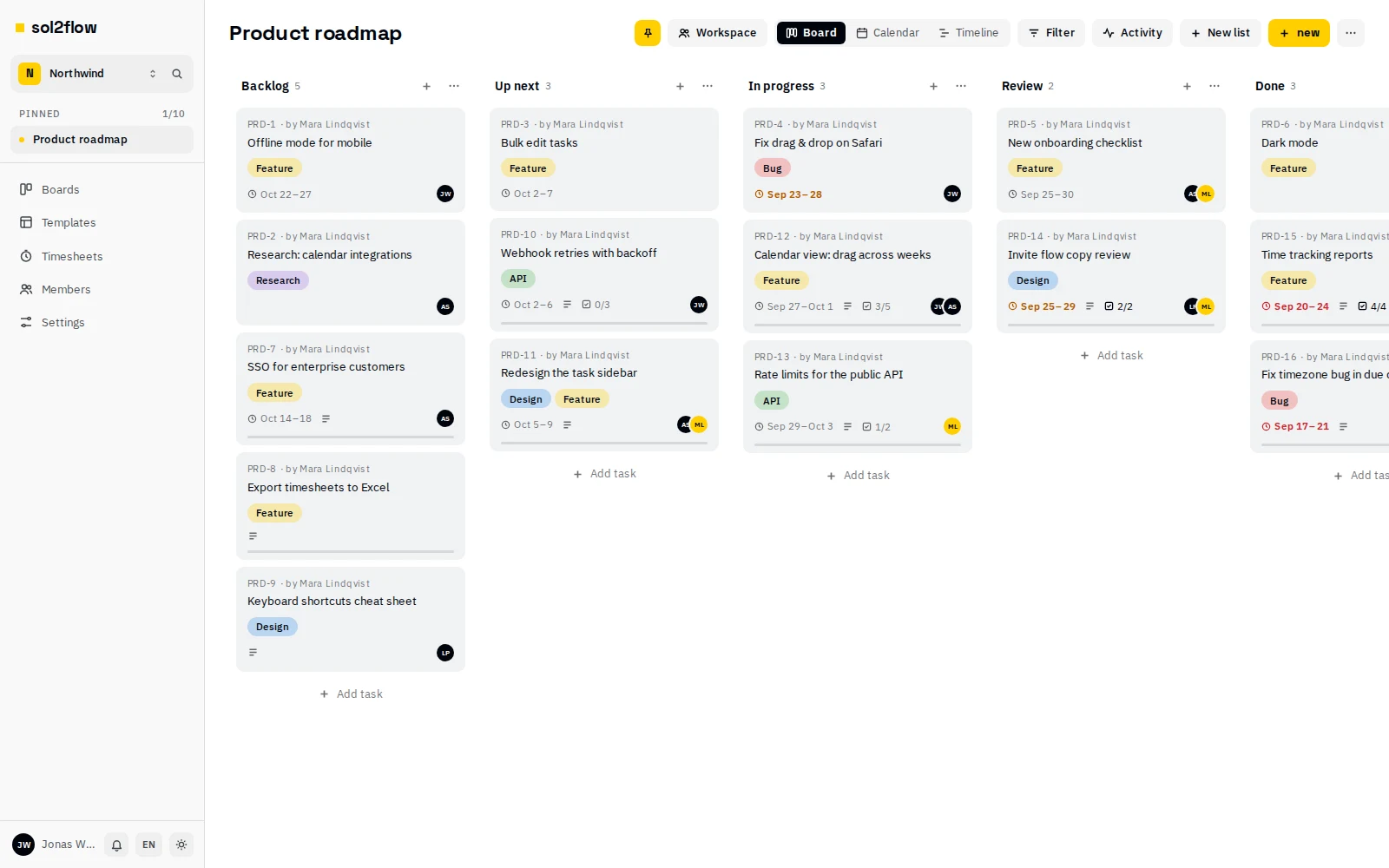
Lists
In the Board view:
- Choose New list to add a list.
- Drag a list by its header to reorder it.
- Open the list's menu (List actions) to rename, move or delete it.
Deleting a list deletes all the tasks in it. You can undo right after from the toast.
A list shows the first 50 tasks; choose Show more to load the rest.
Moving tasks
Drag a task card to another position or list. Dragging works with a mouse, on touch screens, and with the keyboard. To create a task, choose New in the board header (or press C), or Add task at the bottom of a list. See Tasks.
What a card shows
- The task's key (for example
PRD-3), title and labels. - Avatars of the people assigned to it (up to four).
- Time logged, and — when the task has an estimate — a thin progress bar at the bottom of the card. It turns to the overdue colour when more time was logged than estimated.
- A running timer ("■ 00:12:34") when someone's timer runs on it.
- Blocked when an open task blocks it, and the number of linked tasks next to the comments — see Linked tasks.
Card actions
Editors and board admins get quick actions without opening the task:
- ▶ starts a timer on the task (shown on hover on desktop; in the card's ⋯ menu on touch screens). Choose the running time to stop it.
- The ⋯ menu offers Start timer / Stop, Set estimate…, Move to board… and Archive.
Filter tasks
Choose Filter in the board header to narrow down the tasks:
- Search by text.
- Labels — show tasks with any of the chosen labels.
- Assigned to — show tasks assigned to any of the chosen people.
- Show archived — also show archived tasks, dimmed and marked Archived, with Restore for editors.
Clear filters resets everything. The filter applies to all three views and stays when you switch between them.
Select several tasks
Editors and board admins can change or delete many tasks at once in the Board view.
- Choose Select in the board header (or press X). The cards turn into checkboxes.
- Click cards to select them (or focus one and press Space). Shift-click selects every card between the last one you clicked and this one, in the same list. All in a list's header selects the whole list.
- The bar at the bottom shows how many tasks are selected. Select all N selects every task that matches the current filter — also the ones further down a list that aren't loaded yet. Ctrl / ⌘ + A does the same.
- Pick an action: Move (to another list), Assign, Labels, Dates, Archive or Delete. More has Move to board…, Members…, Estimate… and, while archived tasks are shown, Restore archived. On phones all of them are in the Actions menu.
Choose Done or press Esc to leave select mode.
Selection and the filter. Filter first, then select: Select all takes exactly the tasks the filter matches. If you change the filter while tasks are selected, the ones that no longer match are dropped from the selection, and the bar says that all selected tasks match the current filter.
What happens to each task. Every task is changed by the same rules as when you change it on its own: for example, an archived task stays read-only (only delete works on it), a start date can't end up after the due date, and assigned people stay members. Tasks that can't be changed are skipped, and the message tells you how many and why — for example "12 tasks deleted · 3 skipped: no permission".
- Assign and Labels add and remove: existing assignees and labels stay unless you remove them. Turn on Replace the current assignees to give every task exactly the people you pick.
- Dates can keep, set or clear the start and the due date separately.
- Delete asks first and names a few of the tasks. Deleted tasks disappear for everyone; Undo in the message brings them all back.
- Move, Archive and Restore archived can be undone from the message too.
Select mode isn't available in the Calendar and Timeline views. A selection holds at most 1,000 tasks.
Activity
Choose Activity in the board header to open a panel with everything that happened on the board: tasks created, moved, edited and commented on, lists changed, access changed, and so on.
View-only boards
If you're a Viewer on a board, the header shows View only. You can open tasks and read everything, but you can't change tasks or lists.
Board, Calendar and Timeline views
The switch in the board header — Board | Calendar | Timeline — shows the same tasks in three ways. The view is part of the page address, so you can share a link to a specific view. sol2flow remembers the last view you used for each board in your browser.
Calendar
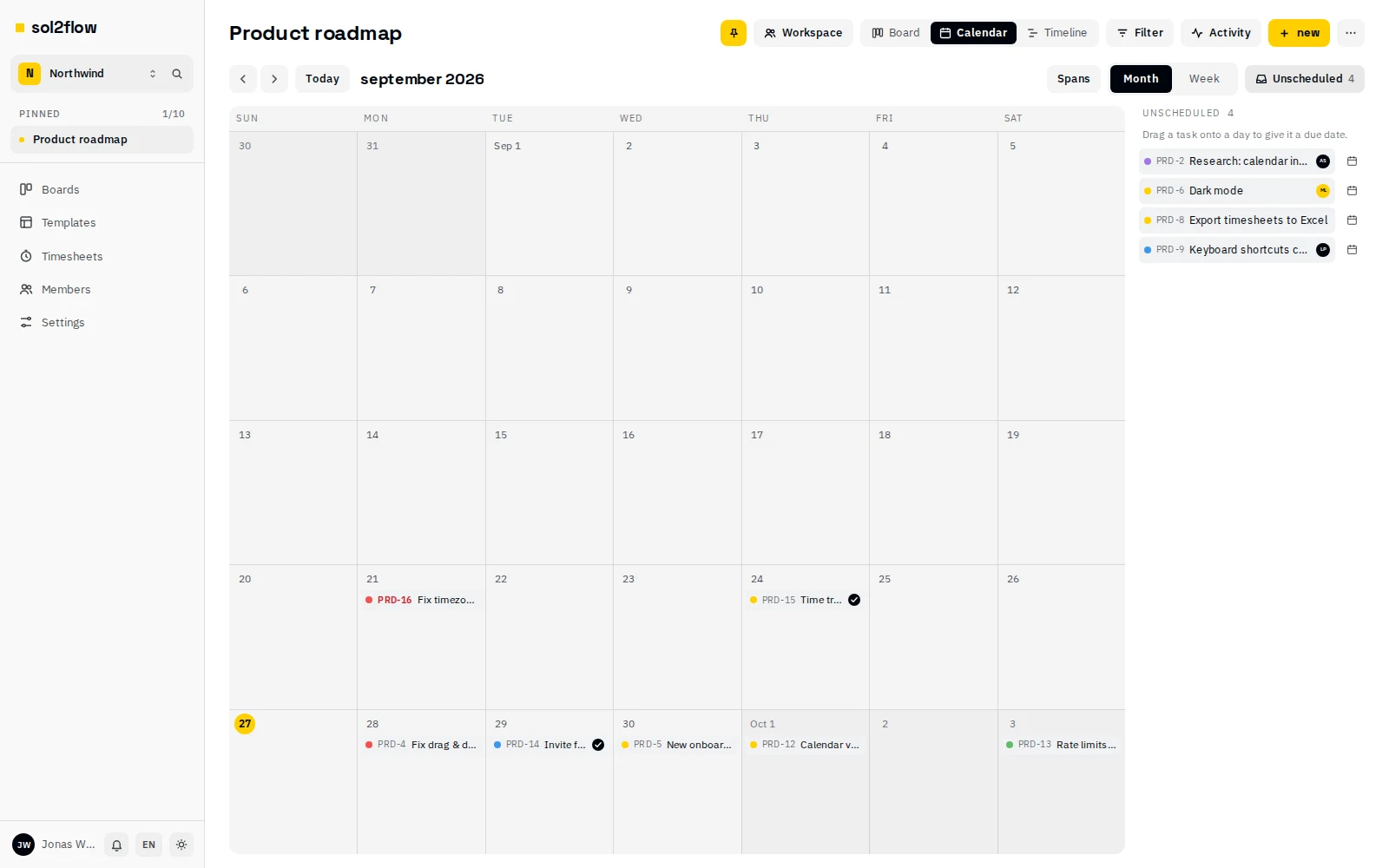
The calendar shows each task on its due date (a task with only a start date shows on its start date).
- Switch between Month and Week, and use the arrows and Today to move around.
- Switch on Spans to show tasks that have both a start and a due date as bars across the days.
- Each task chip shows its label colour, key and title, checklist progress and first assignee. Overdue tasks are highlighted.
- When a day has more tasks than fit, choose +N more to see them all. The day number opens the same list.
- The Unscheduled panel lists tasks without any dates.
- On phones, the month shows coloured dots per day (tap a day to see its tasks) and the week becomes an agenda list.
Changing dates (editors and board admins):
- Drag a task to another day. Its due date becomes that day; if it has a start date, that moves too, so the duration stays the same.
- Drag a task from Unscheduled onto a day to give it a due date.
- With the keyboard: focus a task and press Alt + ← / → to move it a day, or Alt + ↑ / ↓ to move it a week.
- Change date (in a day's list) and Schedule… (in Unscheduled) open a dialog with start and due date fields.
Each change is saved at once, and the toast offers Undo.
Creating tasks (editors and board admins):
- Click an empty part of a day, or its +, to create a task due that day.
- Drag across several days to create a task that starts on the first day and is due on the last.
- With the keyboard, press N on a focused day number.
Timeline
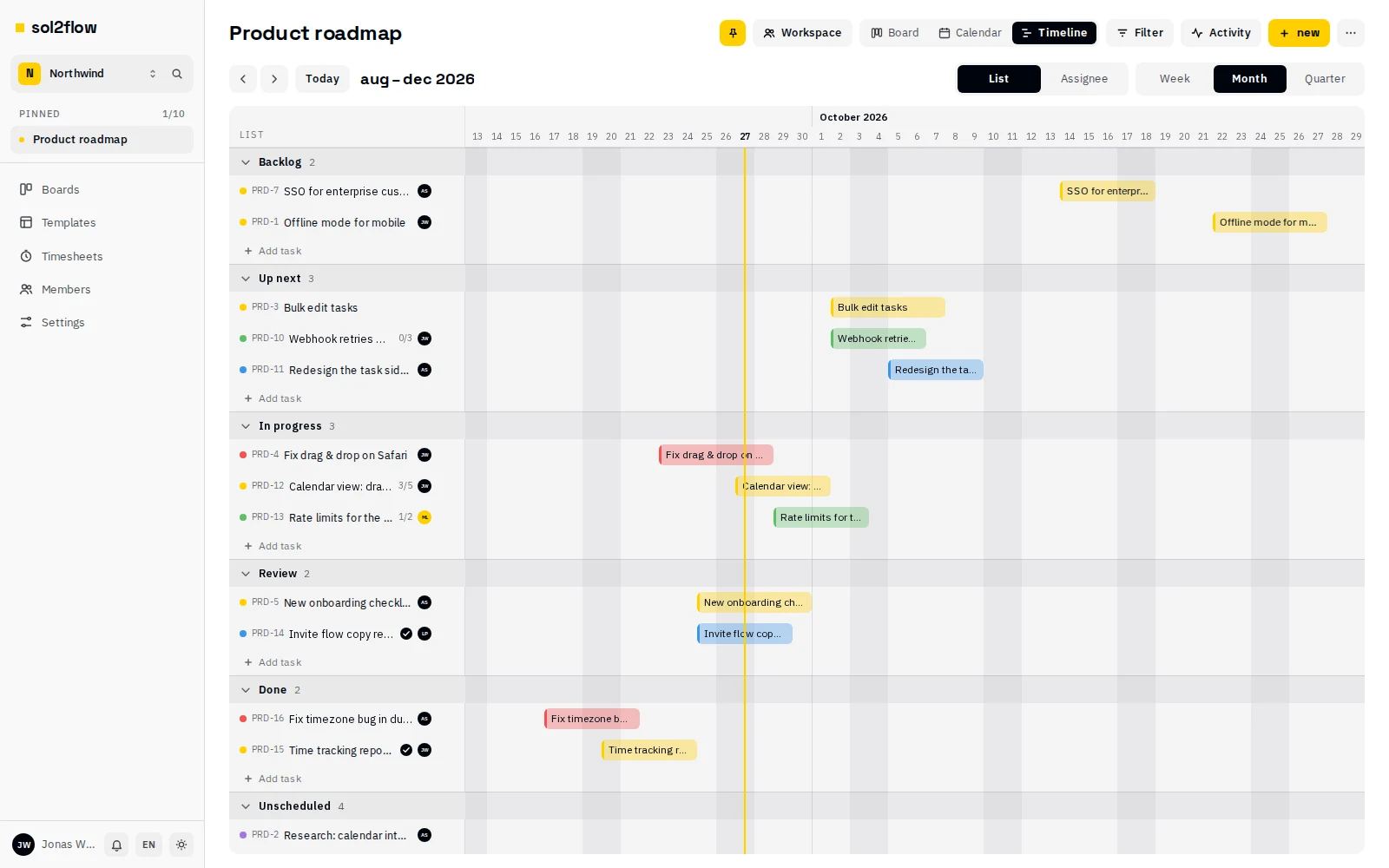
The timeline is a Gantt chart: one row per task, with a bar from its start date to its due date.
- Group by List (the default) or Assignee. Groups can be collapsed. A task with two assignees appears in both groups.
- Zoom: Week, Month or Quarter. Use the arrows to move and Today to come back.
- A task with only a due date shows as a diamond (a milestone). A task with only a start date shows a one-day bar with an open end.
- A yellow line marks today; weekends are shaded.
- Tasks without dates are listed in the Unscheduled group at the end.
Changing dates (editors and board admins):
- Drag a bar to move both dates.
- Drag the left or right edge of a bar to change the start or due date.
- Drag along an empty row to give an undated task a start and due date.
- Or use Change date in the left column.
A start date can never be after the due date; sol2flow tells you and doesn't save such a change.
Creating tasks: drag across an empty part of a row or group header to create a task with those dates, or use + Add task at the end of a group. When grouped by list, that list is preselected; when grouped by assignee, that person is assigned.
Viewers can see the calendar and the timeline but can't move or create tasks there. The same goes for everyone on an archived board.
Archive a board
When a project is finished, archive its board instead of deleting it. Board admins can archive a board from the board's menu:
- Choose Archive board.
- Confirm.
An archived board is hidden from the boards overview, search and pins, and becomes read-only for everyone (its header shows Archived · read-only). To bring it back, open Boards, choose the Archived filter, open the board and choose Restore board.
Other board actions
From the board's menu, board admins can also:
- Rename the board.
- Save as template — reuse the board's lists and labels for new boards.
- Export as JSON or Export tasks as CSV — see Imports and exports.
- Delete board — deletes the board with all its lists and tasks.